Using the Jobs Control
Note: This control is provided for use with CygNet Dispatch. For more information about the CygNet Dispatch product, contact your Account Manager or .
 Use the Jobs control to view CygNet Dispatch job results and determine the potential impact on your measurement data. This includes volume implications of calibration changes, and deciding what resultant data recalculation is necessary. When CygNet Dispatch is synchronized with the FMS service (via CygNet Bridge), Dispatch report data will be updated to capture any changes. You can create up to eight instances of this control. See CygNet Dispatch for more information about the companion application.
Available Node categories for display in this control include Gas Device, Liquid Device, Accessory, Group, or Station Nodes. You can filter the results by selected Node and by job type. To select multiple Nodes from the filtered Node Chooser results, use the Apply changes option. See Using the Node Chooser Control for more information about using Apply changes to display multiple Nodes.
You must have proper security authorization to perform these actions. See FMS Security (and JOB security event) for information about configuring security access for the Jobs control.
See FMS Explorer User Interface for more information about the FMS Explorer user interface.
Viewing Jobs
You can filter the Nodes and job types you want to view jobs for, select a unit set in which to view the results, and select a time format to determine how you view the Effective Date and Completed Date columns. If you opt to use the Session options, effective and completed dates will adhere to the time format set in the Session options. The Available on, Required by, and Approved Date columns are always displayed in Local time (L), as those processes are local to the machine.
From the context menu of the control, depending on your security authorization level, you can manually create new jobs, run precalculation commands to view proposed changes to volumes, edit the effective date for data changes, determine whether to approve history data recalculation based on the changes, delete irrelevant jobs when necessary, or open the associated job report to view or export the jobs data. When a Precalculate Calibration Data command is run, preliminary calculations are performed by the FMS service to determine the potential volume changes resulting from the job result entry (e.g. calibration data updates), and those results are available to become actionable in the Jobs control.
Once a record Status of "Pending approval" is achieved in the control, additional data actions (polls, edits, purges, closed periods, etc.) performed on the Node records will automatically update the precalculated result shown in the "proposed change" columns (closed, total, or % volume). Records will not be recalculated until approved, and recalculations are then applied only to the record types specified at the time of processing.
Each row of the grid represents a job record associated with a specific device Node. Each column represents a data field displaying job results and details, such as potential calculation impacts. The effective, completed, and approved dates and associated users can also be viewed, along with the date the job became available and when it is required to be complete.
The control toolbar and the context menu allow you additional options to access job records, customize the data view directly from the grid, review records for approval, or set the Session Node to further investigate areas of interest.
See Precalculate Calibration Data for more information about the precalculation stage of the process.
Viewing Jobs Data
Use the Jobs control Chooser pane (unless the Use Session Node option is selected in the Options pane) and Options pane to filter the data to show in the grid. Either pane can optionally be displayed or pinned to the left side.
Chooser Pane
In the embedded Node Chooser for the Jobs control, select the Nodes you want to view data for from the <Any>, Group, Device, Gas Device, Liquid Device, Accessory, or Station Node categories. Further filter the Nodes by name, description, or ID as desired. See Using the Node Chooser Control for more information.
Options Pane
In the Session section of the Options pane, define the values for the data you would like to view. In the Jobs section, define additional display options.
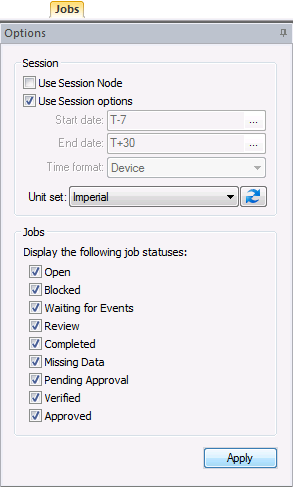
Jobs control options are as follows.
| Session |
|
Use Session Node
|
Click the check box to select/clear the option to Use Session Node instead of using the chooser.
Notes:
The Use Session Node check box is selected by default for Data controls (Alarm, Configuration, History Graph, History Grid, and Raw Data).
The Use Session Node check box is cleared by default for Summary controls (Dashboard, Exceptions), Reports controls, and Admin controls (Balance, Jobs; not applicable to Close Period, PPA).
|
|
Use Session options
|
Click the check box to select/clear the option to Use Session options instead of entering a time window and time format.
Notes:
The Use Session options check box is selected by default for Data controls (Alarm, Configuration, History Graph, History Grid, and Raw Data).
The Use Session options check box is cleared by default for Summary controls (Dashboard, Exceptions), Reports controls, and Admin controls (PPA, Balance, Jobs; not applicable to Close Period).
|
|
Start date
|
Date selections are in Local time (L).
Select the starting date, unless Use Session options is selected. Type the date into the text box or click ... to Select Date.
See Selecting Date and Time for more information.
|
|
End date
|
Date selections are in Local time (L).
Select the ending date, unless Use Session options is selected. Type the date into the text box or click ... to Select Date.
See Selecting Date and Time for more information.
|
|
Time format
|
Click to select the desired time format from the drop-down menu, unless Use Session options is selected. This selection applies to Effective Date and Completed Date only; Available on, Required by, and Approved Date column values are always displayed in Local time (L).
Options are as follows.
Default value is Device time.
|
|
Unit set
|
Select a unit set in which to view the data. Options appear in the drop-down menu, which is populated by the unit sets defined in the service, and includes a default unit set.
|
|

|
Refresh the available unit set list. |
| Jobs |
|
Display the following job statuses
|
Click the check box to select/clear each desired job status you want shown in the results.
Options are as follows. See status column for descriptions.
- Open
- Blocked
- Waiting for Events
- Review
- Completed
- Missing Data
- Pending Approval
- Verified
- Approved
Default value is all selected.
|
|
Apply
|
Click to Apply the changes made through the Options pane.
|

Columns
A variety of data types are available to be viewed in the Jobs control. Job data can be sorted by a selected column. Click a column header to sort results by its values. Click the column header again to reverse the order in which results are shown (arrow direction indicates sorting order).
Columns in the grid represent the following data fields. Volume column headers reflect the units selected on the Options pane.
|
Device Name
|
Name of the device Node associated with each job
|
|
Device Description
|
Description of the device Node associated with each job
|
|
Job Type
|
Displays the type of each job to display
Possible job type values are as follows.
- Auto-calibration
- Calibration
- Gas Sample
- [User-supplied value options, as defined in the Job.csv file]
|
|
Status
|
Displays the status of each job
Possible job status values for Calibration type jobs are as follows.
- Open - job has been created and scheduled
- Blocked - job could not be completed due to force majeure or malfunction
- Waiting for Events - job is awaiting events data before being completed (applies only to gas meters with job type = Auto-calibration)
- Review - validation rule for job has been violated, necessitating review
- Completed - job has been saved as complete (applies only to gas meters with job type = Auto-calibration or Calibration)
- Missing data - history data is incomplete within the date range required (between effective and completed dates)
- Pending approval - job has been reviewed and is awaiting approval
- Verified - when no calibration has occurred for the job, data has been verified to ensure that field measurements are accurate within a known tolerance and the job is ready for approval (applies only to gas meters with job type = Auto-calibration or Calibration)
- Approved - job was approved
|
|
Available on
(L)
|
Date the job is available for completion, in Local time (L)
|
|
Required by
(L)
|
Date the job is required to be complete, in Local time (L)
|
|
Effective Date
(t)
|
Note: This field applies only to gas meters with job type = Auto-calibration or Calibration.
Date from which adjustments will be applied to the data, followed by the Time Format (t) as selected on the Options pane.
Possible date/time format values are as follows.
- (D) - Device time
- (C) - Contract time
- (L) - Local time
Effective date can be user-specified, otherwise a default date is system-calculated upon job completion. When calculated, the date falls midway between the job completion date and the highest priority previous date available for the Node (either: date of last completed job of the same type, or job schedule start date or device install date - as configured in the Node properties).
Effective date uses a time of 00:00:00, offset by the Node contract hour value if present.
|
|
Completed Date
(t)
|
Date the job was completed, followed by the Time Format (t) as selected on the Options pane.
Possible date/time format values are as follows.
- (D) - Device time
- (C) - Contract time
- (L) - Local time
|
|
Approved Date
(L)
|
Date the job was approved, in Local time (L)
|
|
Proposed Change
Closed Volume (units)
|
Calculated volume ∆ affecting closed records only, due to calibration value change
|
|
Proposed Change
Total Volume (units)
|
Calculated total volume ∆ (open + closed records) due to calibration value change
|
|
Proposed Change
% Volume
|
Calculated total volume ∆ (open + closed records) due to calibration value change, expressed as a percentage of the total volume
|
|
Completed by
|
Name of the user who completed the job resulting in the calibration change
|
|
Approved by
|
Name of the user who approved the data recalculation adjustment due to the calibration change
|
Managing Jobs Data
Toolbar
Use the Jobs control toolbar to access options to manage the data you are viewing. See Menus and Toolbars for more information.

The following options appear on the toolbar; unavailable buttons appear dimmed.
|
|
Click to Refresh the data in the control view.
Note: The Refresh button will not take into account changes made through the Options pane that have been selected but not yet applied.
See Refresh Button for more information.
|
|

|
[The Save button is not available on this control.]
|
|

|
[The Cancel button is not available on this control.]
|
|

|
Click to Open and view the control as a .csv file.
|
|

|
[The Print button is not available on this control.]
|
|

|
Click to Export the contents of the control to a .csv file.
|
| Job type |
Click to select a Job type from the drop-down menu, to filter the Jobs displayed in the grid.
Options are as follows.
- <Any>
- Auto-calibration
- Calibration
- Gas Sample
- [User-supplied value options]
Default value is <Any> jobs.
|
|
|
Click to Refresh the available Job type options.
|
Context Menu
Use the context menu to access options to set the Session Node, manage job records, or adjust decimal precision in the display. See Session Node and Using Keyboard Shortcuts for more information.
Right-click on any row of the grid to access the option to set its associated Node as the Session Node. Alternatively, click on a job record row and press Ctrl+Shift+S to set the Session Node using a keyboard shortcut.
Right-click on a row of the grid to access the following options.
|
Create
|
Click Create (in the white space for a new job, or on an existing job for a copy of that job's settings to edit) to access the dialog box where users with proper security authorization can manually create a single new job. Provide values for all fields shown.
Note: Manually created jobs become available in CygNet Dispatch upon synchronization with the server.
To create new jobs automatically, define a job schedule via the Extended Options in the Commands window, and run the Schedule Jobs command via the MSS in CygNet Explorer. See Schedule Jobs for more information.
|
|
Set as Session Node
|
Click Set as Session Node to set the selected Node as the Session Node. Alternatively, press Ctrl+Shift+S to set the Session Node using a keyboard shortcut.
See Session Node and Using Keyboard Shortcuts for more information.
|
|
Review calibration events
|
Note: This option applies only to gas meters with job type = Auto-calibration
Click to review calibration events data for the selected auto-calibration job, to approve changes potentially affecting history records for the selected gas meter Node.
Once calibration events are reviewed and applied, they become available for potential Precalculate and Approve actions.
See Reviewing Calibration Events for more information.
|
|
Precalculate calibration data
|
Click to run a Precalculate Calibration Data system command for the selected device, to review potential volume changes affecting history records for the selected Node.
|
|
Change effective date
|
Select one or multiple job rows, and then right-click to access the context menu.
Click Change effective date to access the Change Effective Date dialog box and enter a new effective date for the selected record(s).
The effective date is the date from which recalculations will be applied to history data as a result of value adjustments from the selected job record. To edit the date, enter the new date/time and click OK. Recalculations based on the selected job results will then only occur for records from that date/time forward.
|
|
Approve
|
Note: Recalculation functionality is only available in CygNet Measurement systems licensed for FULL mode.
Select one or multiple job rows, and then right-click to access the context menu.
Click Approve to access a dialog box where users with proper security authorization can approve the adjustment and recalculation of history data as a result of the selected job record result(s).
For Calibration or Auto-calibration job type records, the Select Records to Recalculate dialog box appears, where you can specify which record types to include in subsequent recalculations of records affected by the changes.
Possible values are as follows.
- Open records only
- All records
- No records - discard adjustments
The "Approve" action triggers history record recalculations for the affected Node.
Note: When CygNet Dispatch is next synchronized with the FMS service (via CygNet Bridge), the Dispatch report data will be updated.
|
|
Purge
|
Select one or multiple job rows, and then right-click to access the context menu.
Click Purge to access a dialog box where users with proper security authorization can purge the selected job(s) and any related report(s) and details from the system.
Note: A "purge job" action does not undo any recalculations that have already been implemented as a result of a selected calibration job.
|
|
Open job report
|
For jobs with a "Completed" status, click Open job report to view the job report associated with the selected record, and optionally export it in a preferred format.
To export the selected report, use the buttons at the bottom of the job report dialog box.
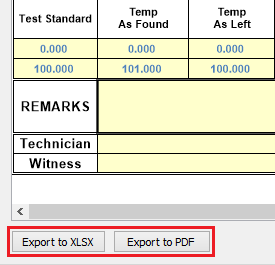
Click one of the following file format options to access the export dialog and specify a directory location.
- Export to XLSX
- Export to PDF
|
|
Decimal precision
|
Click to select Decimal precision for the display from 0 - 10 decimal places.
Default value is 7.
|
More:
 Reviewing Calibration Events

